


How To Insert SIM Card and Activate Service
Ready to install your SIM card? These steps will show you how:
1.) Make sure your device is fully charged and connected to WiFi.

2.) Update your phone to the latest iOS or Android.

3.) If you haven't already, download the Visible app.
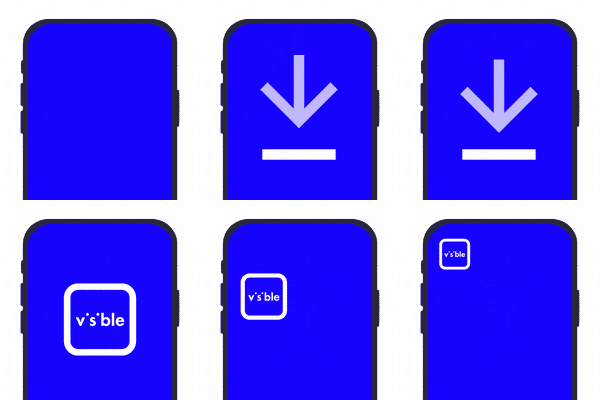
4.) Open the Visible app and log into your account.
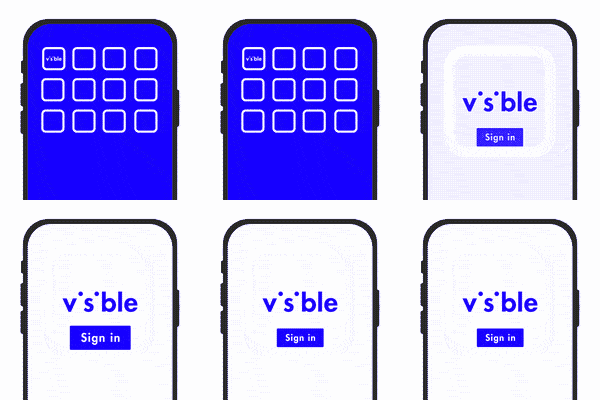


Heads up: Transferring your number? The app will tell you status of the transfer, including when it's time to insert your Visible SIM.
Note: Your number will still work until you tap Activate in the Visible App
5.) Open the SIM kit then remove the tool (the metal piece) and the SIM card.

6.) Locate the SIM tray (small slot with a hole, usually on the sides of your phone).
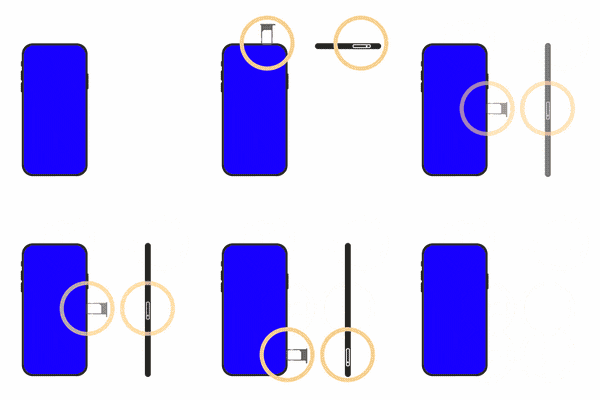
7.) Push the SIM tool into the hole until the tray pops out.
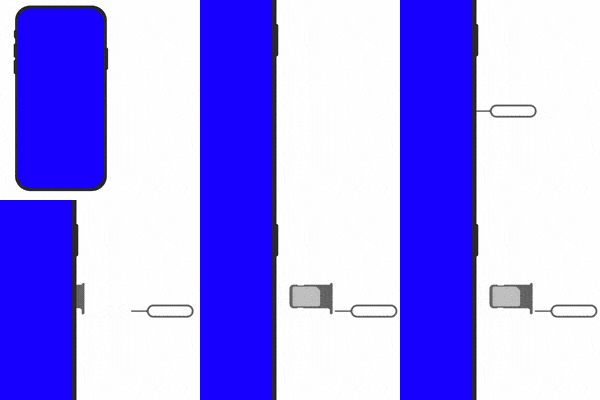
8.) If there's an old SIM in your phone, remove it and put your new Visible one in its place.
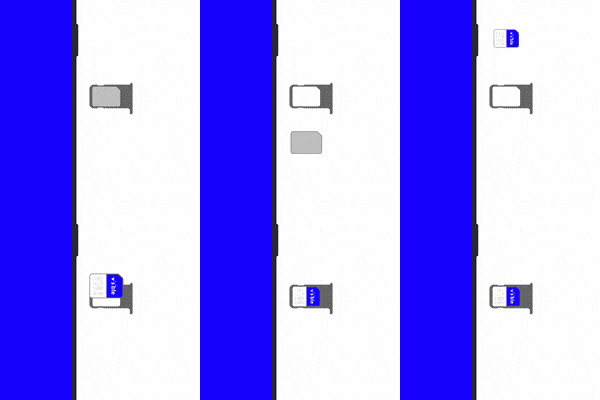
No old SIM? Just stick the Visible SIM in the tray. Depending on your phone, the gold part might face up or down. If you have to force the SIM tray shut, the SIM may not be positioned correctly.
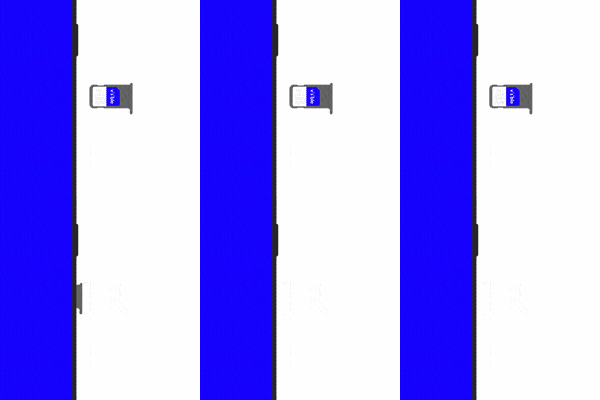
9.) Once the Visible SIM is in the tray, go ahead and close it.
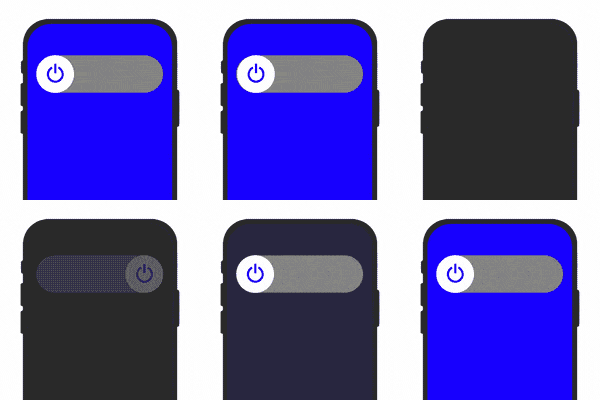
10.) Turn your phone off, then back on. If you get any notification about updating carrier settings go ahead and do it.
11.) Return to the Visible app and follow the instructions to complete activation.
Transfer your physical SIM (pSIM) card
Follow the simple steps below if you want to switch a pSIM from your current device to a new one:
- Eject the pSIM from your current device
- Insert the same pSIM into your new device
- Restart your new device
- Your Visible service will activate with the device restart
What is a SIM ID code?
How to identify the SIM ID code:
- The code is on the front of the perforated tray that the physical SIM (pSIM) card came in.
- Members may also need to provide their 6-digit code to the Care team if any issues come up during activation.
If you need assistance, feel free to reach out to the Care team through the Visible app or chat online.
Last Updated date: Nov 20, 2025